Chrome DevTools MCP (2025): A Practical Guide to AI-Driven Browser Debugging
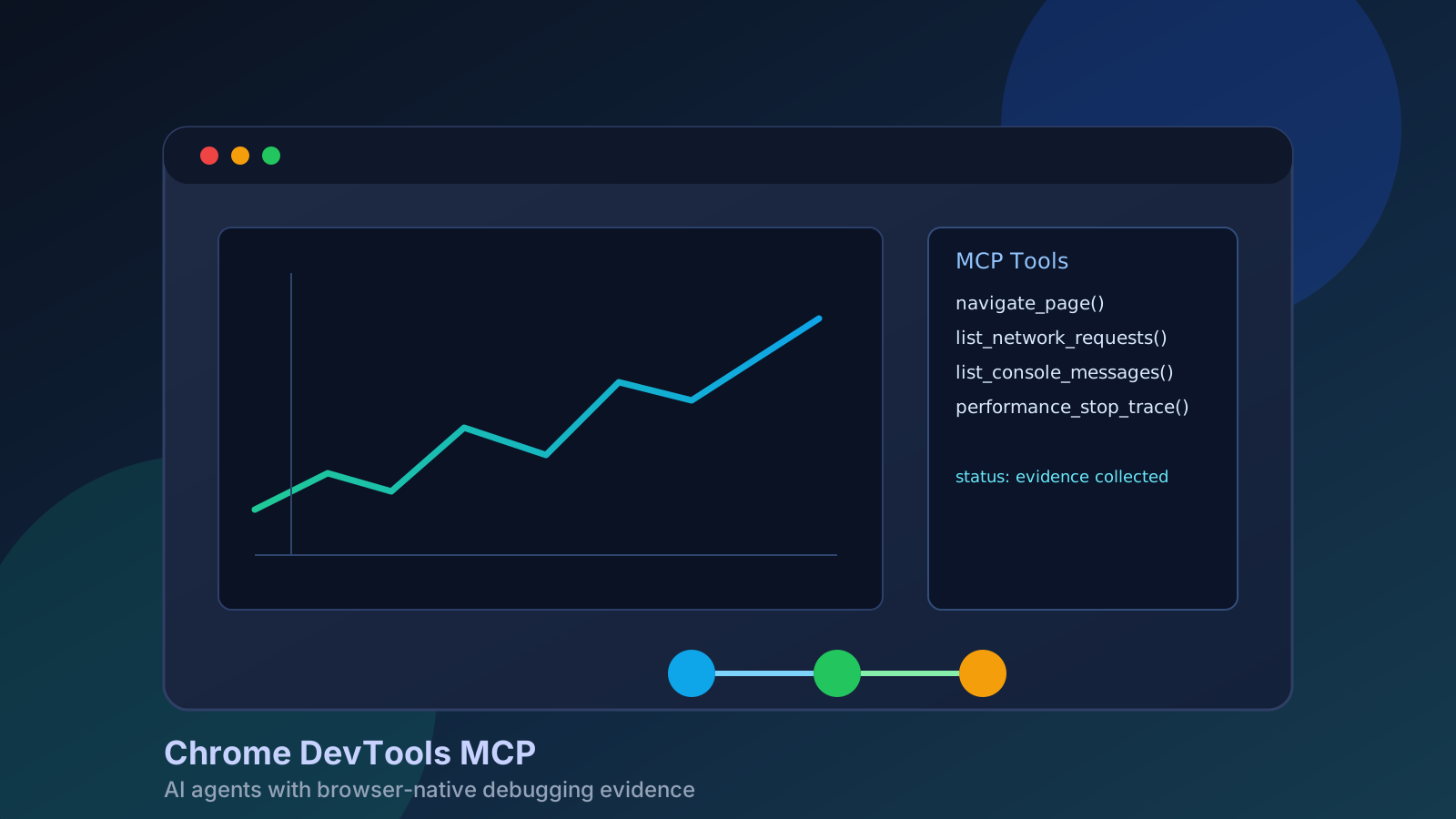
Chrome DevTools MCP is one of those rare tools that changes daily engineering behavior in a week, not a quarter. It gives coding agents a way to operate a live browser through DevTools and Puppeteer-backed actions, so they can inspect what actually happened instead of guessing from static code.
That shift sounds small, but it changes debugging quality. Instead of asking an assistant to speculate why a checkout button is broken, you can let it open the page, inspect console errors, track failed requests, run a trace, and return evidence.
This article walks through what Chrome DevTools MCP is, why it matters in 2025-era agent workflows, how to configure it safely, and where teams get the biggest real-world return.
What Chrome DevTools MCP Actually Does
At a high level, chrome-devtools-mcp is an MCP server that exposes browser automation, debugging, network inspection, and performance analysis capabilities to an AI client.
The important detail is that it is not just generic browser scripting. It combines:
- DevTools-powered insight collection,
- Puppeteer-style reliable action execution,
- structured tools that an LLM can call repeatedly in a loop.
In practice, that means an agent can:
- navigate and interact with pages,
- watch network activity,
- inspect console output with source-mapped stacks,
- take screenshots and snapshots,
- run performance traces and derive insights.
This is what makes it useful for engineering work instead of demo automation.
The Fastest Setup Path
The default installation pattern is intentionally minimal:
{
  "mcpServers": {
    "chrome-devtools": {
      "command": "npx",
      "args": ["-y", "chrome-devtools-mcp@latest"]
    }
  }
}
For many teams, using @latest is the right default because the project is shipping rapidly and new client compatibility updates arrive frequently.
If your use case is lightweight browser automation, there is also a slim mode:
{
  "mcpServers": {
    "chrome-devtools": {
      "command": "npx",
      "args": ["-y", "chrome-devtools-mcp@latest", "--slim", "--headless"]
    }
  }
}
Slim mode reduces tool surface area to a basic navigation/evaluate/screenshot set, which can improve reliability for narrow tasks and reduce accidental misuse.
Core Capabilities That Matter in Production
The project currently groups capabilities into several families. The highest-leverage ones for day-to-day engineering are these.
1. Navigation and Input Control
Agents can open pages, switch tabs, wait for specific conditions, click, fill forms, and submit interactions. This is table stakes for reproduction.
The real value is that these actions are wrapped in a consistent tool protocol rather than fragile one-off scripts.
2. Debugging and Console Intelligence
Reading console messages is useful, but the source-mapped stack support is what makes this practical for modern frontend codebases. When a minified bundle throws, the agent can still reason from mapped source locations.
That dramatically shortens the loop from “something failed in production-like state” to “exact file and branch condition likely responsible.”
3. Network Observability
Request listings and single-request inspection let agents verify response codes, payload shape, missing headers, and timing behavior.
For API-heavy apps, this often catches integration breakage faster than static code review.
4. Performance Tracing and Insights
Chrome DevTools MCP can start/stop traces and run insight extraction over captured data. That is the difference between vague “this feels slow” reports and trace-backed recommendations.
The performance tooling can also consult CrUX field data unless explicitly disabled, giving better context than lab-only runs.
Architecture and Operational Model
In a typical loop:
- The AI client chooses a tool call.
- Chrome DevTools MCP executes against a controlled Chrome session.
- Results are returned as structured output.
- The model plans the next tool call from evidence.
This stepwise loop is important. Complex browser debugging rarely succeeds in one giant prompt. It succeeds through incremental inspection with feedback after each action.
That behavior aligns well with MCP’s explicit tool invocation model.
Browser Session Strategies: New Instance vs Existing Instance
By default, the server launches a dedicated Chrome instance with its own profile cache. That is convenient and usually safest for repeatable runs.
But there are two practical cases where connecting to an existing browser is better:
- you need live signed-in application state,
- your MCP server runs in a sandbox and must control a browser outside it.
Chrome DevTools MCP supports both automatic and manual connection models:
--autoConnectfor supported Chrome setups,--browser-urlor--ws-endpointfor explicit remote debugging endpoints.
This flexibility is a major reason teams can adopt it without redesigning their whole local workflow.
Safety and Privacy: Non-Negotiable Considerations
The project’s own disclaimers are blunt: once connected, MCP clients can inspect and modify browser-visible data.
Treat that as a privileged boundary.
Operationally, safe usage means:
- use isolated or dedicated profiles for agent runs,
- avoid sensitive browsing in the same debug session,
- scope remote debugging access to localhost and controlled environments,
- close debugging ports when not actively needed,
- separate production credentials from automation credentials.
There is also default usage-statistics collection at the tool level, independent from Chrome browser metrics, with opt-out flags available. Teams with strict policy requirements should codify those flags in shared configs rather than relying on per-user behavior.
Version Cadence and Why It Matters
As of March 11, 2026, the latest release was chrome-devtools-mcp-v0.20.0, including an experimental chrome-devtools CLI and ongoing troubleshooting/documentation improvements.
That fast iteration is mostly a benefit, but it implies a practical policy decision:
- individual developers can track
@latestfor velocity, - CI or critical team environments should pin versions and upgrade intentionally.
This split policy gives both innovation and operational predictability.
A Practical Workflow That Actually Works
A reliable team loop looks like this:
- Reproduce: agent opens the target flow and reaches failing state.
- Inspect: gather console messages and failing requests.
- Hypothesize: propose top 1-2 root causes from evidence.
- Patch: apply minimal code change.
- Verify: rerun browser path and confirm behavior + no new console regressions.
- Profile (if needed): run trace and compare key timings.
The key is evidence checkpoints between each stage. Without checkpoints, models drift into confident but unverified narratives.
Where It Delivers the Most Value
Chrome DevTools MCP shines in situations where agent output quality depends on runtime truth:
- flaky UI behavior that static analysis misses,
- regressions tied to network timing or API contract mismatch,
- performance complaints needing trace-backed diagnosis,
- end-to-end bug triage with reproducible forensic output.
It is less magical for purely backend algorithm work where browser state is irrelevant.
Common Failure Modes and How to Avoid Them
Over-broad Permissions
If the agent can run against a highly privileged browsing context, you have created an avoidable security risk. Use isolated profiles and explicit environment boundaries.
Blind Trust in a Single Tool Pass
One trace or one console snapshot is not enough. Require at least one validation rerun after a patch.
Unpinned Team Config
When everybody uses whatever version they happened to install last week, inconsistent behavior is inevitable. Keep shared configs under version control.
No “Done” Criteria
“Looks fixed” is weak. Define done as: reproduction no longer fails, no new high-severity console errors, and a targeted regression check passes.
A Minimal Team Rollout Plan
If you want adoption without chaos, keep the first rollout small:
- Pick one frequent browser-debug task (for example: checkout flow failures).
- Define a standard prompt template for reproduce-inspect-patch-verify.
- Add a shared MCP config with explicit safety flags.
- Require short evidence artifacts (console snippet, request summary, screenshot).
- Review outcomes weekly before broadening scope.
This produces higher trust than turning every agent loose with full browser control on day one.
Closing
Chrome DevTools MCP is not just another “AI tool” in the stack. It is infrastructure for making agent-driven frontend work evidence-based.
The reason it resonated is simple: it closes the gap between what an assistant claims and what the browser proves.
If your team already uses coding agents but still spends too much time verifying UI behavior manually, this is one of the highest-impact upgrades you can adopt right now.